Devices (iPad)
CongPlan Live runs on iPad and iPhone with iOS 16 or later. The device follows the language of the iPad: German shows German, everything else English. It adapts to a light or dark screen.
Pairing
The device shows an 8-digit number. The person reads it out to the helper, also over the phone. The helper types it into the administration under “Enter number from the device”, and the device carries on by itself. The number is valid for 10 minutes; after that the device shows a new one.
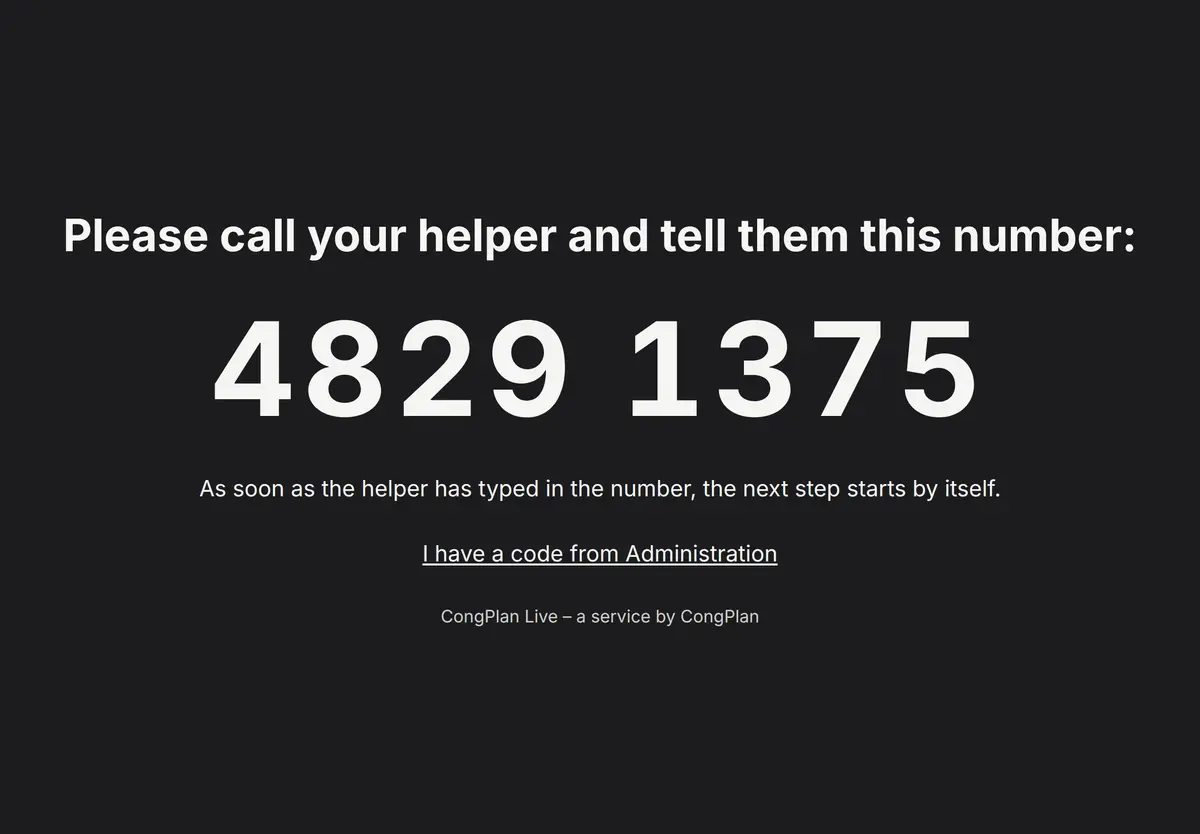
If the helper is next to the device, they can create a 10-digit pairing code in the administration instead. It appears large and as a QR code. On the device, tap “I have a code from Administration” and type in the code or scan the QR code. A pairing code is valid for 24 hours and once, and it is locked after five wrong entries. Up to 10 devices per congregation are possible for now.
After pairing, the helper goes through the seven setup steps.
Waiting screen
The device says in one sentence what comes next, for example “There is a meeting today at 7:00 PM.” or “The next scheduled meeting is on Sunday, November 29, at 10:00 AM.” Below it: “You don't need to do anything.”
Joining
As soon as the meeting runs in Zoom, the device joins while the app is open. The screen then says “The meeting is in progress – you are being connected.” The regular times in the administration only decide the text on the waiting screen and the reminder.
- If “Connect by itself” is off, the person taps “Join now”.
- If nobody has started the meeting in Zoom yet, the screen says “The meeting has not started yet.”
- While the app is in the background, a notification reminds: “The meeting starts soon.”
- If the host admits participants one by one, the device shows “You are in the waiting room. The host will let you in shortly.” Then it carries on by itself.
In the meeting
The picture fills almost the whole screen. Whoever speaks appears large; after a while of silence the device shows everyone. “Show everyone” or “Show speaker only” fixes the view until the end. When someone shows pictures or a video, they fill the screen.
Four buttons sit at the edge: “Microphone”, “Camera”, “Raise hand” and “Leave”. Microphone, volume and battery show at the top. At 20 % and 10 % battery, the device asks for the charging cable.
When the host mutes or unmutes the microphone, a banner with a chime appears. If the host asks to switch the microphone on, the device does so when “Microphone” is allowed; otherwise a dialog asks with “Yes” and “No”. A request for the camera always asks with “Yes” and “No”.
Leaving and joining again
“Leave” asks first: “No, I will stay” or “Yes, leave”. The device then shows “You left the meeting.” and the button “Join again”. It does not return to this meeting by itself, not even after the app is opened again. The next meeting starts by itself again.
Changing settings
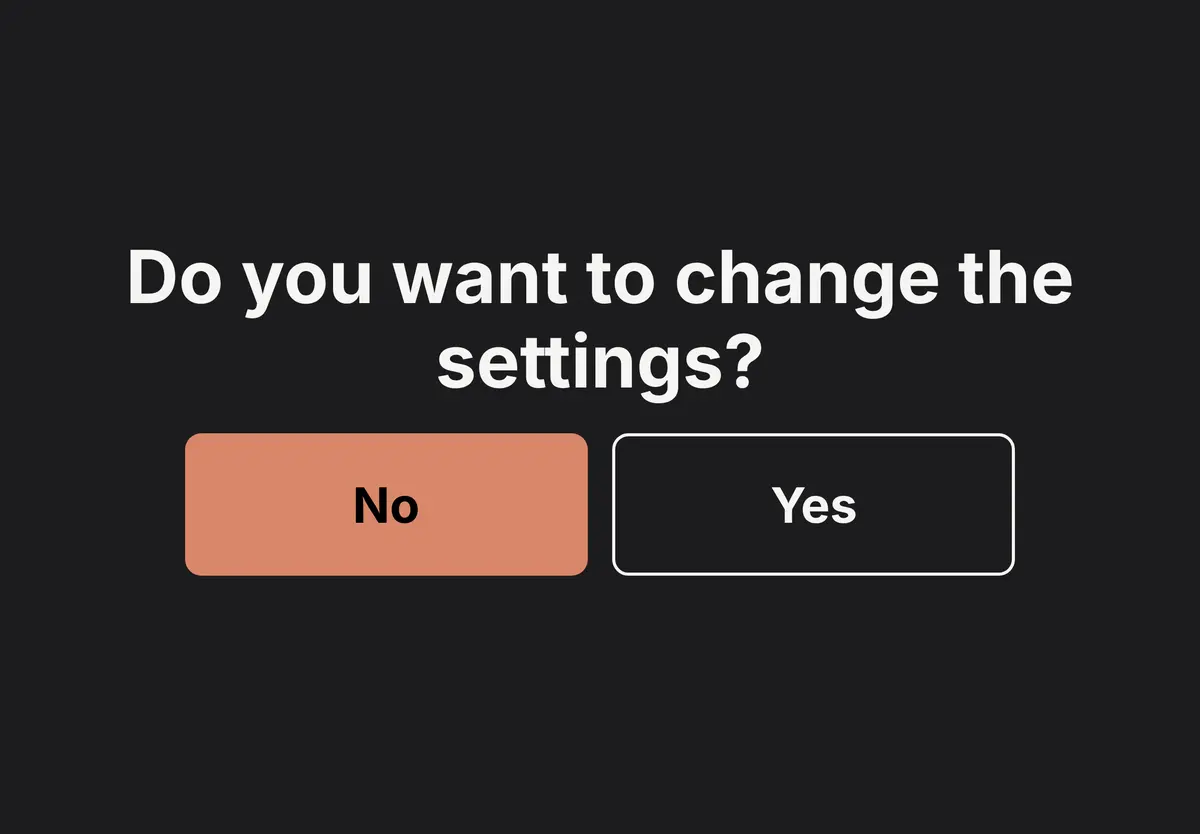
Tap “Change settings” at the bottom right of the waiting screen. The device asks “Do you want to change the settings?”; “Yes” opens the helper area, “No” goes back. This way the person does not end up in the settings by accident. What can be changed there is described on the page Helpers.
What the device's messages mean
| The device shows | What to do |
|---|---|
| “No internet. Is airplane mode on, perhaps?” | Swipe down from the top right corner: airplane off, Wi-Fi on. If it stays that way, the device names the helper to call. |
| “Wi-Fi is connected, but the internet is not working right now.” | Check the router. The device tries again by itself. |
| “The connection dropped for a moment.” | Wait; the device reconnects. |
| “Please plug in the charging cable.” | Plug in the charging cable. |
| “The meeting has not started yet.” | Wait. The device joins as soon as the meeting runs in Zoom. |
| “You left the meeting.” | Tap “Join again”. The next meeting starts by itself. |
| “The meeting cannot be reached right now.” | Joining failed, not the network. The helper checks the meeting in the administration and whether it is assigned to the device. |
| “The Zoom sign-in is no longer valid.” | Sign in again in the helper area under “Own Zoom account”. |
| “This device needs to be set up again.” | iOS has not allowed the camera or microphone. Allow it in the iOS settings under “CongPlan Live”. |
| “This device is no longer connected.” | Pair the device again with the number from the device or a new code from the administration. |
| “The code is wrong or has expired.” | Create a new code in the administration. |
| “Too many attempts. Please try again in 15 minutes.” | Wait 15 minutes. |
| “The congregation already has as many devices as allowed.” | Remove an old device in the administration. |